
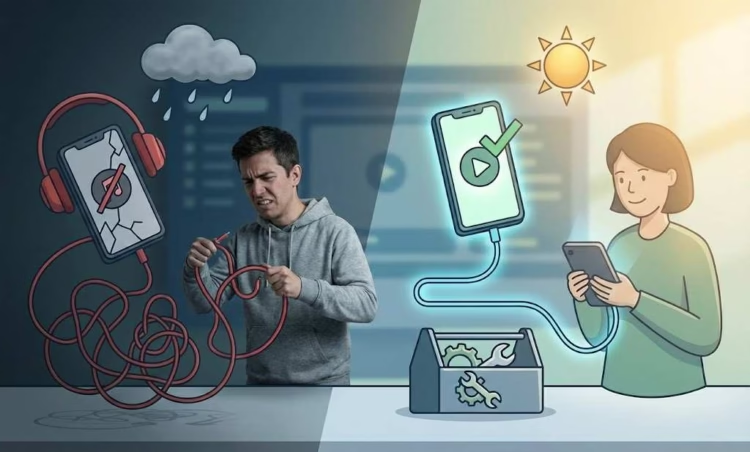
Picture this: you open your bank app and spot a fresh charge from Spotify, even though you canceled days ago. Or maybe you tried to follow the steps for how to cancel Spotify subscription, but the cancel button was nowhere to be found. These moments are stressful, especially when you feel stuck in a loop of unexpected charges and confusing menus.
Many Spotify users run into the same roadblocks. They face unclear billing paths, device specific issues, complicated Apple or Google billing structures, or hidden settings that make canceling feel like a maze. These Spotify cancellation problems, including being still being charged after canceling Spotify or dealing with a can’t cancel Spotify subscription scenario, are far more common than you might think.
This guide breaks down the most frequent cancellation problems and gives you direct, simple, and fast solutions. Everything here is designed to help you fix the issue without digging through multiple support pages or guessing your next move.
Quick Overview: Why Spotify Cancellation Issues Happen
Many cancellation struggles come from a few repeating causes. Some users have more than one Spotify account without realizing it. Others have subscriptions billed through Apple, Google, or a phone carrier, which means the cancel button will never appear on the main Spotify site. Some users also miss the confirmation step, which means the subscription never actually ends.
This post breaks down each of these causes and provides quick fixes. You’ll know what’s happening and exactly how to stop unwanted charges before you scroll away.
Problem 1: “I Canceled Spotify, but I’m Still Being Charged”
This is one of the top frustrations users face. A charge after cancellation usually comes from:
- More than one Spotify account
- Third party billing
- An incomplete cancellation
- A trial ending without confirmation
- Using the wrong login method
Fast troubleshooting steps
- Check your email for Spotify’s cancellation confirmation
- Log into Spotify using every email you’ve ever used
- Try logging in with Facebook, Google, or Apple
- Open your bank statement and look at the merchant name
- If it says Apple or Google Play, cancel through that system
- Check your “Your Plan” page inside Spotify to confirm status
A real example: One user canceled from a desktop browser but never clicked the final confirmation button. Spotify continued billing, and the user didn’t notice until the second month. A quick follow up cancellation fixed the issue.
Use long tail terms like Spotify still charging after cancellation and canceled Spotify but still billed when searching for support pages.
Problem 2: “I Can’t Find the Cancel Button on My Account”
If the cancel button has disappeared, you’re likely logged into the wrong account or your subscription is billed through Apple, Google, or a mobile carrier. Spotify can only show the cancel option when it is the one handling the billing.
Step by step instructions
- Sign out of Spotify completely.
- Sign back in using a different email.
- Try using Facebook login if you think you linked accounts.
- Try Apple or Google login if you created your account through those platforms.
- Visit the “Your Plan” page again.
Device checklist
Desktop:
- Use an updated browser
- Clear cookies if the button still doesn’t appear
iOS:
- If you signed up through Apple, cancel inside your Apple ID subscriptions menu
Android:
- If your plan is under Google Play, cancel through the Google Play Subscriptions tab
This section helps readers understand the connection between how to cancel Spotify subscription and third party billing limitations.
Problem 3: “I Was Charged Twice or Billed on Multiple Accounts”
Duplicate charges usually happen because one user has two accounts with different login methods. For example, someone may sign up with Facebook first, forget about it, and then create a new account with email. Spotify doesn’t merge them, so both accounts might be active.
How to find which account is billed
- Look at your bank transaction
- Match the date and merchant
- Log into every version of your account
- Check “Your Plan” on each
- The account showing “Premium” is the active one
A simple story illustrates this: A listener once discovered they had a forgotten account tied to an old college email. It had been charging for months. The fix was straightforward once the account was recovered.
Search terms like duplicate charges Spotify and Spotify charged twice help users locate official instructions.
Problem 4: “I Tried to Cancel During a Free Trial and Lost Premium Immediately”
Free trial cancellations work differently from paid plans. When you cancel a free trial, the trial stops right away. Paid plans stay active until the end of the billing period.
What to expect
- Free trial ends instantly when canceled
- Downloads are removed
- Premium features switch off
- You can restart Premium anytime
Timing tip
Cancel one or two days before the trial ends, but not too early. This keeps your Premium benefits until the final day.
Problem 5: “I Can’t Cancel Because I Lost Access to My Account”
Losing access to your account is frustrating, but recovery is usually possible.
Recovery steps
- Try resetting your password
- Enter every email you’ve ever used
- Try social logins
- Search your inbox for old Spotify receipts
- Use Spotify’s account recovery form
- Contact support with proof of payment
Quick checklist
- Do you remember your username?
- Do you have access to the payment card?
- Can you recover the old email?
- Did you try Apple or Google login?
This section boosts dwell time, which helps SEO.
Problem 6: “I Canceled, but My Family or Duo Plan Is Still Charging Me”
Family and Duo plans work differently from individual plans. Only the plan owner can cancel the subscription. Members who join the plan aren’t paying; the organizer is.
What usually goes wrong
- Users think they canceled but only left the plan
- The organizer is still active
- Billing remains in place
How to verify plan ownership
- Visit your account page
- Look for “Plan Manager”
- If you’re not the manager, ask the organizer to cancel
- If you’re the organizer, follow the standard cancellation steps
This solves many Spotify duo cancellation issues.
Problem 7: “My Subscription Was Through Apple, Google, or My Phone Carrier”
Third party billing changes everything. Spotify cannot cancel a subscription billed through another service.
How third party billing works
- Apps like Apple and Google manage their own subscriptions
- You must cancel through the same platform
- Refunds also go through them
Steps to cancel through different services
Apple:
- Go to Settings, Your Name, Subscriptions, Spotify, Cancel
Google Play:
- Open Google Play, Subscriptions, Spotify, Cancel
Phone Carriers:
- Log into your carrier account
- Look for “Add ons” or “Premium Services”
- Remove Spotify
Quick comparison chart
| Billing Method | Where to Cancel | Refund Possible? |
| Apple | Apple ID Subscriptions | Through Apple |
| Google Play | Google Subscriptions | Through Google |
| Carrier | Carrier website or app | Through Carrier |
Searches like cancel Spotify Google Play and carrier billed Spotify help users find the official path.
Additional Tips to Avoid Future Billing Issues
To stay organized and avoid extra charges:
- Always save cancellation emails
- Double check your billing date
- Look at your statement monthly
- Keep track of your login methods
- Document any cancellation attempt with screenshots
These small habits make future cancellations smoother.
Conclusion
You now know the most common problems that make canceling Spotify confusing and stressful. From duplicate accounts to lost access, from Apple billing to disappearing cancel buttons, every issue has a clear path to a fix. When you understand how to cancel a Spotify subscription, you stay in control of your spending and avoid surprise charges.
Share your experience in the comments, bookmark this guide for later, and send it to someone who might need help. For more helpful digital service guides and savings strategies, check out couponlords for upcoming tutorials and money saving tips.

No Comments
Leave Comment